
Sunday I described how you can take digital photographs and stitch them together using software to make a panoramic picture. Yesterday I started to show just how freakin’ huge those panoramas can get. Now that you’ve given life to the monster, what do you do with it?
Unless you’re using some very expensive, custom displays, you’re not going to show a huge, wide panorama in its full aspect ratio. There might be ways to line up three or four monitors side by side and get your display software to split the image across them, but there are easier solutions. Although it does occur to me that a properly sized panorama (3840 x 1080 in my case) could be displayed as a background image across two monitors fairly easily. And if you had multiple correctly sized panoramic images, you should be able to set up a background slideshow to change them out every hour or day or week or whatever. Something to look into…
There are a limited number of software packages which show up in a Google search that say that they’ll let you easily scroll through a panoramic image. It also seems that they can be used as screensavers, to scan back and forth through a panorama (or library of them) when your computer is idle or when you just want to watch the panoramas go by. I thought that there would be quite a few such programs, but the number seems more limited than that. I don’t use one (I’ll show you how I do it) but one free program that I see is WPanorama. (The WPanorama site also has many panoramic images from around the world that you can download.) If anyone has any experience with this or any other programs like it, please let me know in the comments below.
I don’t necessarily need a program that will act as a screensaver or scroll through an image automatically. I much prefer to go looking through the image myself. It turns out that the free image handling program that I’ve used for year (IrfanView, highly recommended!) will work just fine.
Remember yesterday’s 75 megapixel panoramic image from Colorado’s Garden of the Gods?
 (Click me!)
If I pull it up with IrfanView, in full screen mode, I have lots of simple display options. I can make the entire image size to fit on the screen:
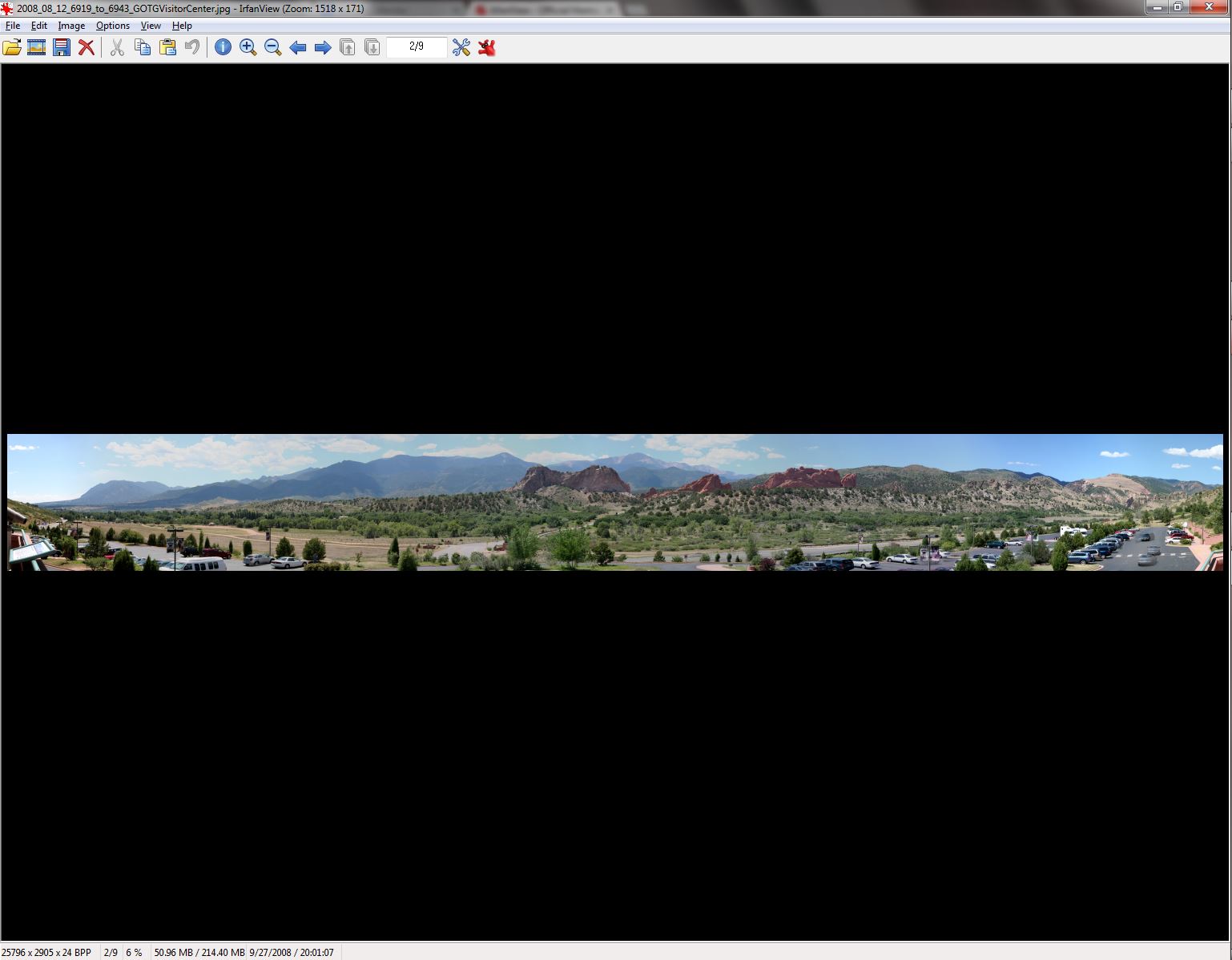
…but to do so it shows at 6% of the normal resolution.
I can make the image show at full size, 100% resolution:
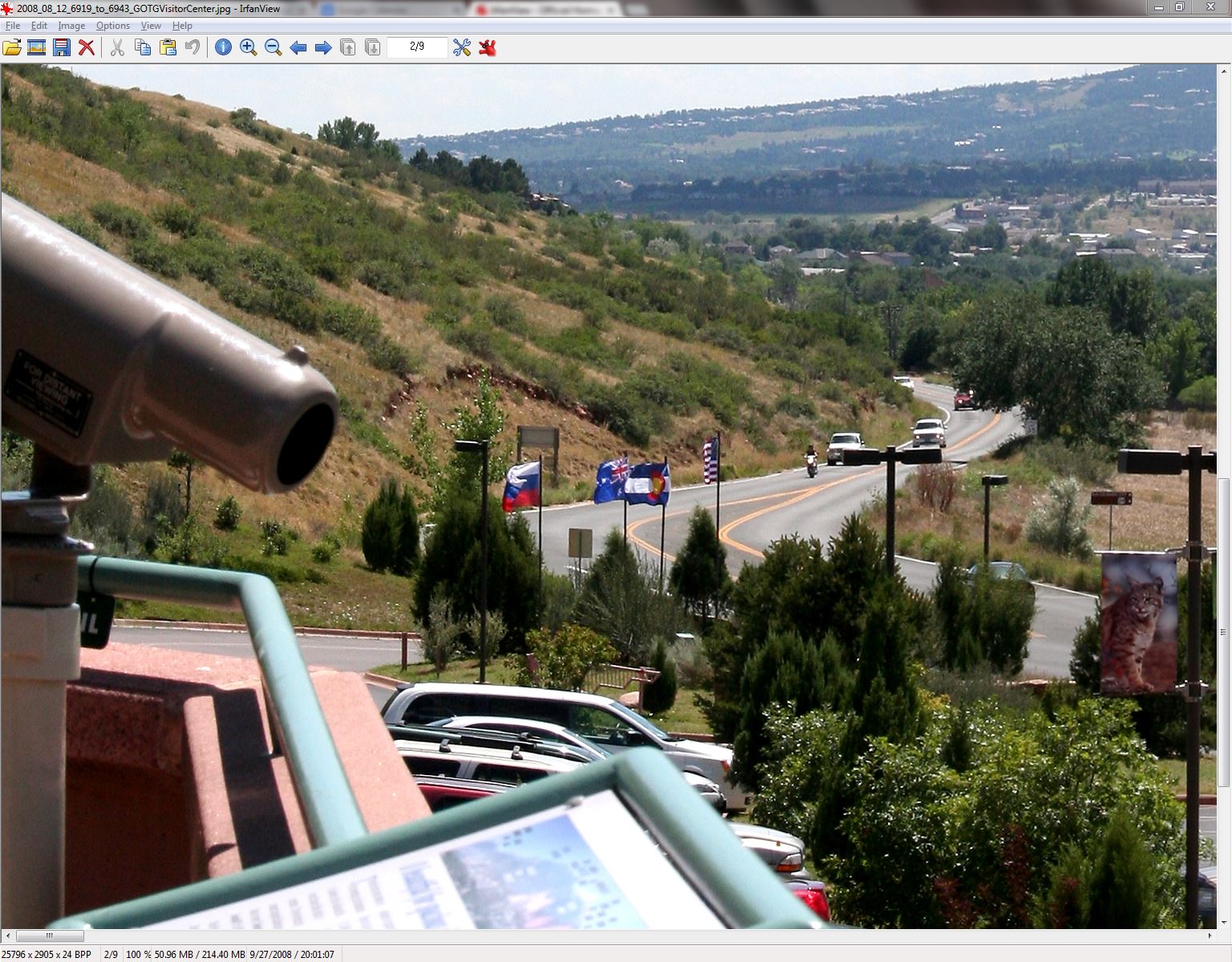
…but then I see just a tiny window (which I can move around at will, use the scroll bars!) out of the full image.
What works best for me is to size it so that the vertical dimension just fits the screen, so the portion of the image we’re seeing is complete from top to bottom, but much wider than the display left to right:
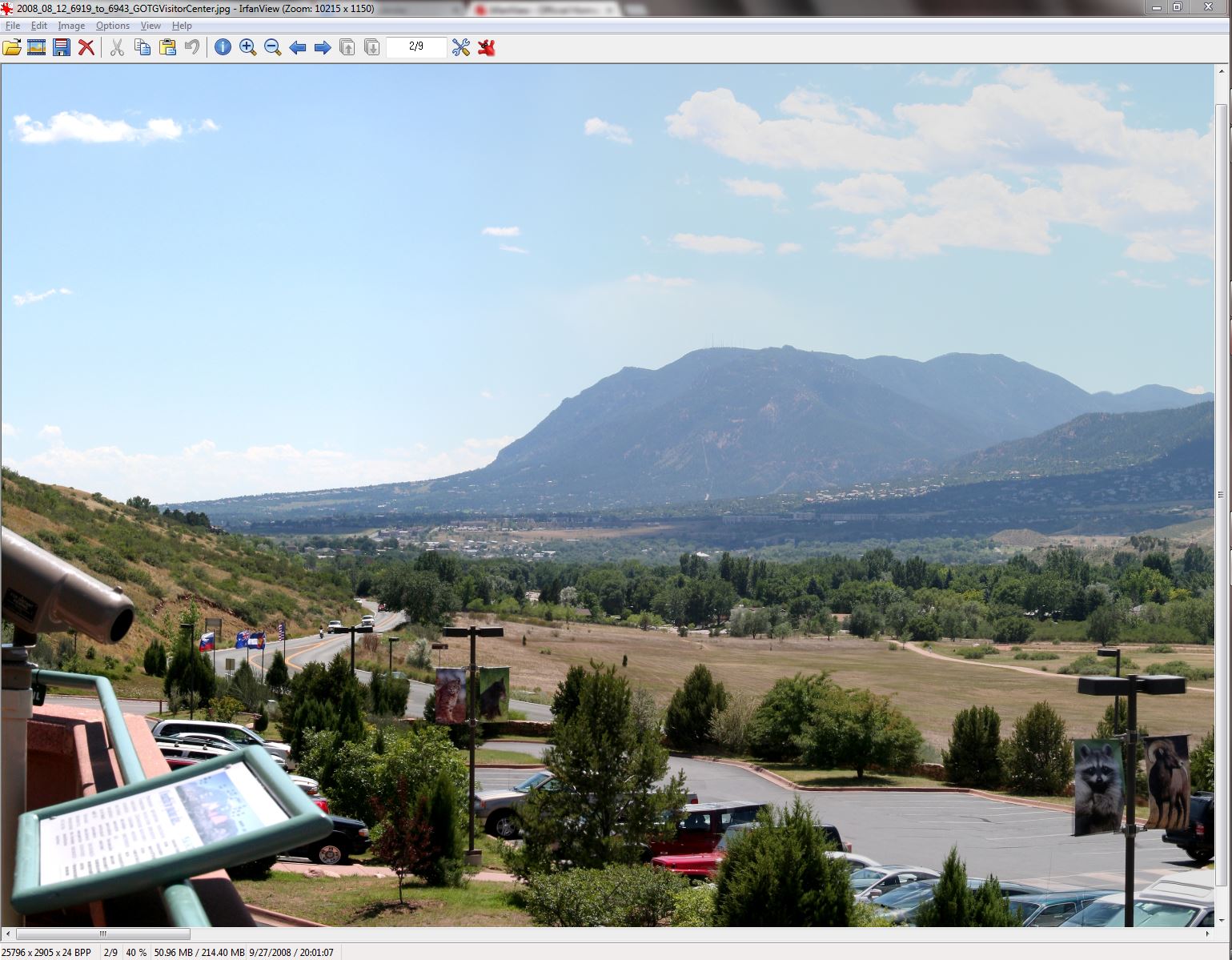
…which in this case is about a 40% zoom factor. Then I just have to use the scroll bar at the bottom (or the left and right arrows) to move around. If I see a detail that I want to examine more closely, I can always zoom in to 100% any time, then zoom back out to move around some more.
Now that we have the ability to quickly and easily move around the image and look at it, what do we see? Are these panoramas “perfect” after they’ve been stitched together from 15 or 20 or 25 (or more) individual images?
Not quite. One “artifact” that you see a lot, particularly on objects closer to you (typically at the bottom edge of the picture), is a result of parallax.
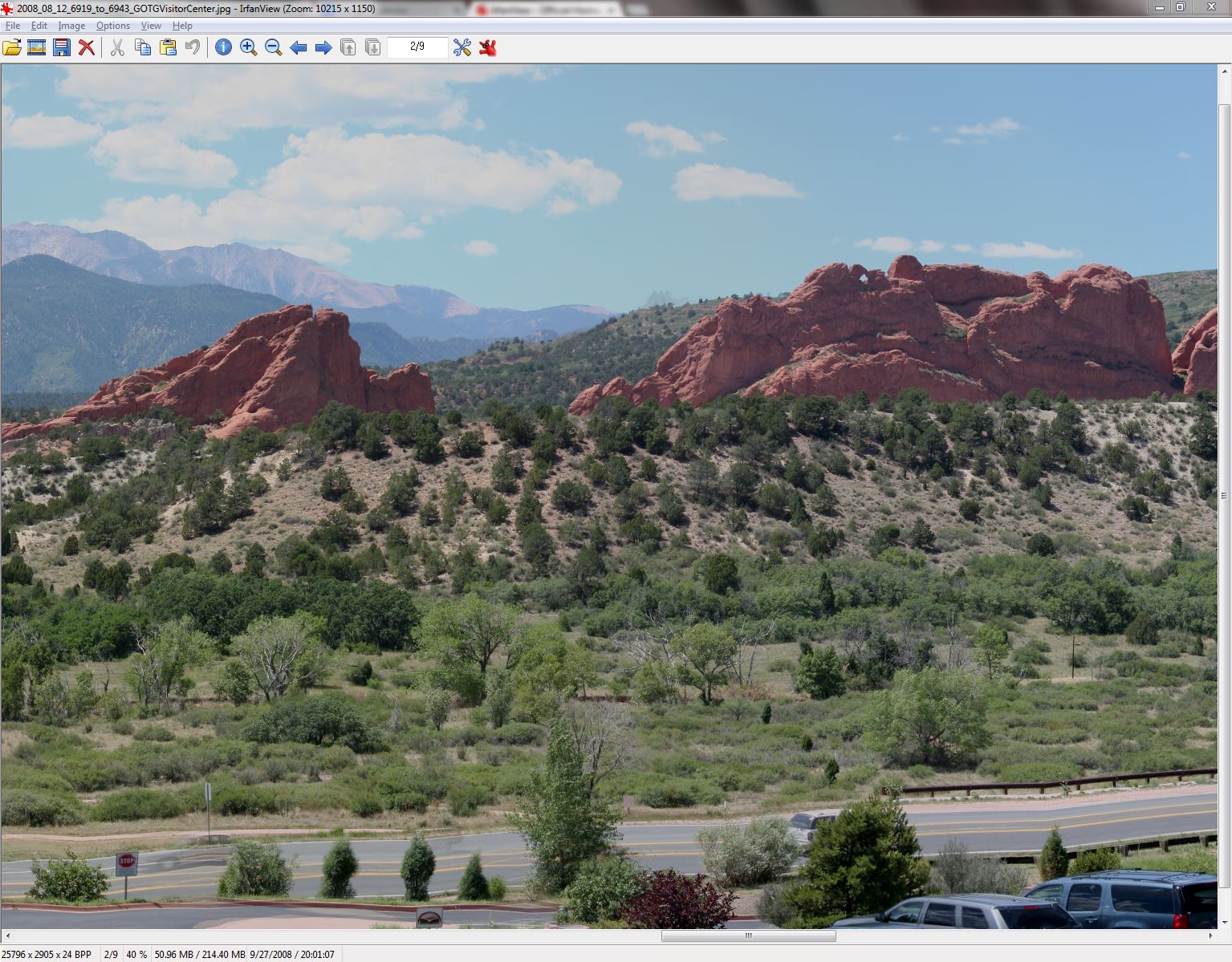
The road and lane lines at the bottom of this portion of our panorama are straight in the real world, but when a series of images with slightly different viewpoints are merged, the best fit can make it look wavy and blurry. At the same time, the rocks in the middle distance and the mountains on the horizon look just fine due to the parallax angles for them being extremely small.
The other most common “artifact” that you’ll see are “ghost” images, where something (again, usually in the foreground) is moving in the brief time between frames being taken.
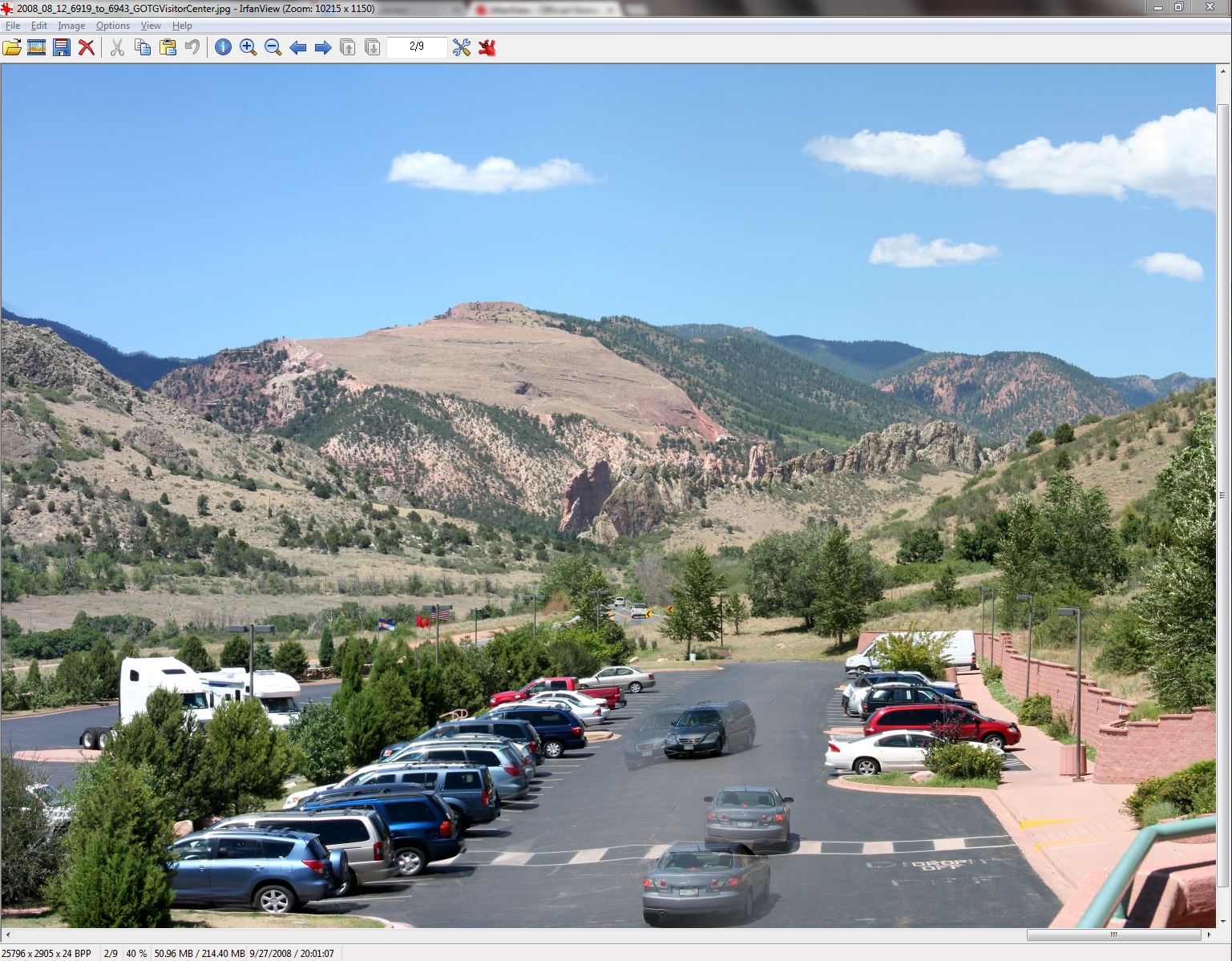
At the far right of this panorama you see two cars moving in the parking lot, which is quite close to our point of view. As the cars move in the two seconds between frames, the stitching software can’t match them up, so it often just matches up all of the stationary objects (parked cars, trees, crosswalk) and shows both images for the objects that it can’t make sense of.
I think that hits all of the high points for now. The basics of how panoramas are made, how they can be made really big and really detailed, how to view them, and what’s great about them along with what’s a bit funky with them.
If you see someone out someplace scenic (natural or manmade) and they’re taking one picture after another (bang! bang! bang!) about two seconds apart, spinning slowly through 180 degrees or 270 degrees or 360 degrees, they’re not (necessarily) insane, they’re just taking images to stitch together into a panorama. If the person in question is short, middle aged, and dressed like a dweeb, it’s probably me!
Needless to say, you can expect to see plenty of panoramas from my travels in the weeks and months to come. (It remains to be seen if that’s a tease or a warning.)


 We Love The Stars Too Fondly